
Connect a WooCommerce store
You will need two windows open: the Passkaar portal, signed in as the shop’s owner or an admin, and your WordPress dashboard, signed in as someone who can install plugins.
Make a key in the portal
Section titled “Make a key in the portal”-
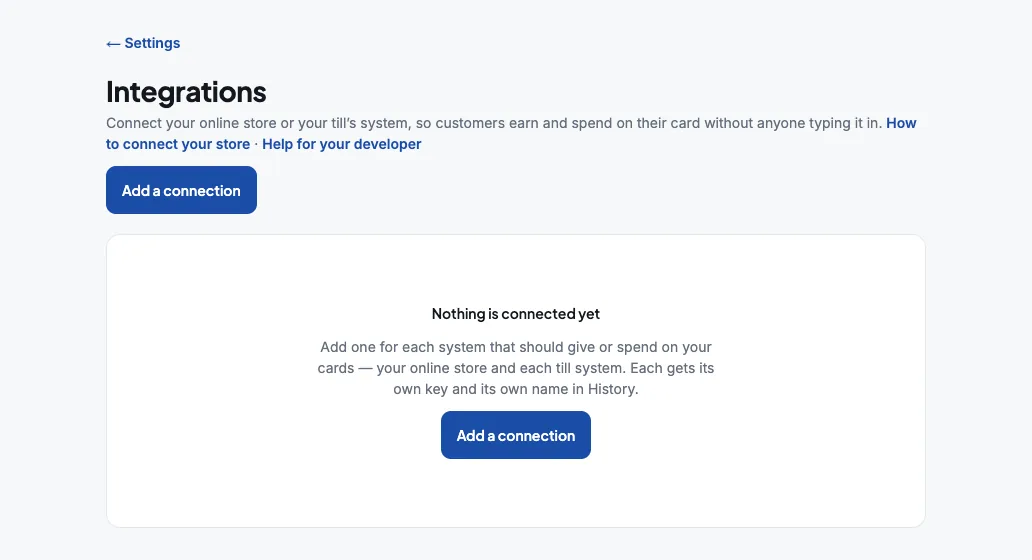
In the Passkaar portal, open Settings, then Integrations. On a phone, Settings is under More at the bottom of the screen. If the page says Passkaar switches integrations on for your shop, ask us first.
-
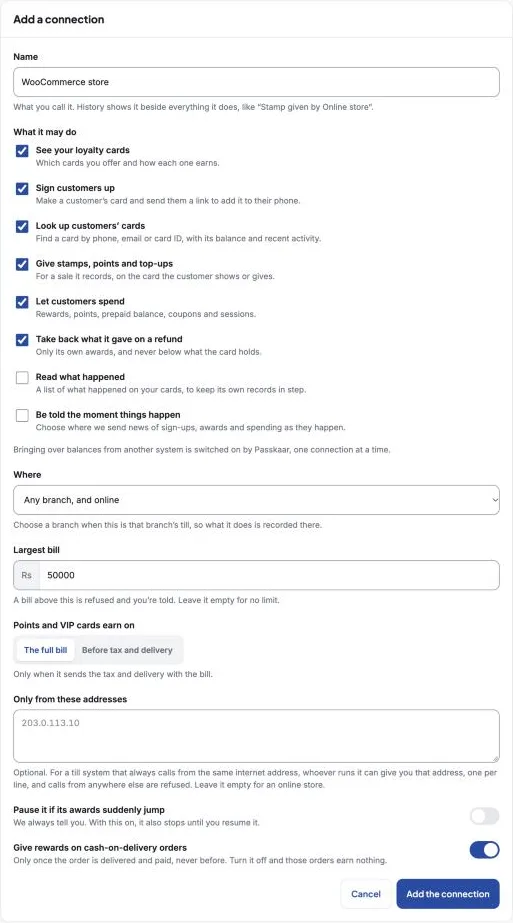
Choose Add a connection and fill it in:
- Name: what you call it, such as WooCommerce store. Your History shows this name beside everything your store does, so you can tell an online order from a sale at your counter.
- What it may do: tick See your loyalty cards, Sign customers up, Look up customers’ cards, Give stamps, points and top-ups, Let customers spend and Take back what it gave on a refund. Your store needs all six. Leave the last two, Read what happened and Be told the moment things happen, unticked: they are for software a developer writes, and your store does not use them.
- Where: leave it on Any branch, and online.
- Largest bill: an order above this is refused and you are told. Set it a little above your biggest order.
- Points and VIP cards earn on: the full bill, or the bill before tax and delivery.
- Only from these addresses: leave it empty. It is for a till system that always connects from the same internet address.
- Pause it if its awards suddenly jump: we always tell you if your store suddenly gives far more than usual. Switch this on to have it stop as well, until you resume it.
- Give rewards on cash-on-delivery orders: on, and those orders earn once you mark them completed; off, and they earn nothing.
-
Choose Add the connection. Passkaar shows the store’s key once: a long line of letters and numbers, starting
psk_live_, that lets your store reach your loyalty cards. Choose Copy the key, keep it somewhere safe until you have pasted it into WordPress, then choose I’ve copied it.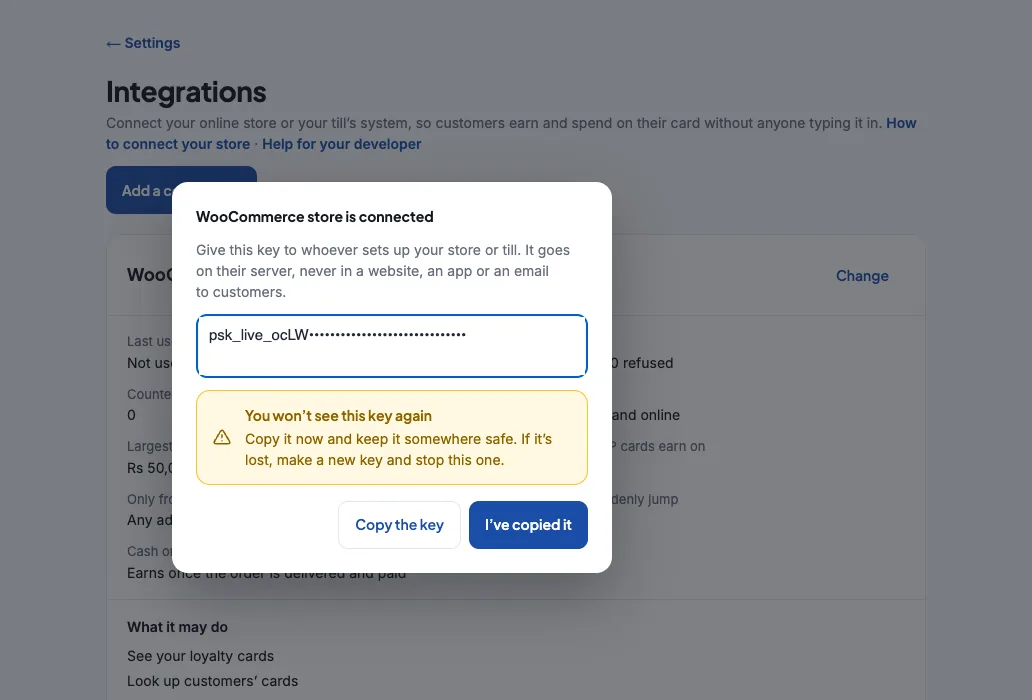
The key opens your loyalty cards to your store. Do not email it, put it in a chat, or share a screenshot of it. If it is lost or seen by someone else, make a new key and stop the old one (see Pausing or disconnecting).
Install the plugin
Section titled “Install the plugin”Download the plugin, a file named passkaar-loyalty.zip. The
same download is under Settings → Integrations in the Passkaar portal. Keep the file as it is:
WordPress installs it from the zip. Then, in WordPress:
- Open Plugins → Add Plugin, then Upload Plugin.
- Choose
passkaar-loyalty.zipand Install Now. - Choose Activate. Your list of plugins now shows it as Passkaar Loyalty for WooCommerce.
The plugin needs WooCommerce to be installed and active first. It works with both WooCommerce checkouts, the newer block checkout and the classic one.
Paste the key and choose your card
Section titled “Paste the key and choose your card”-
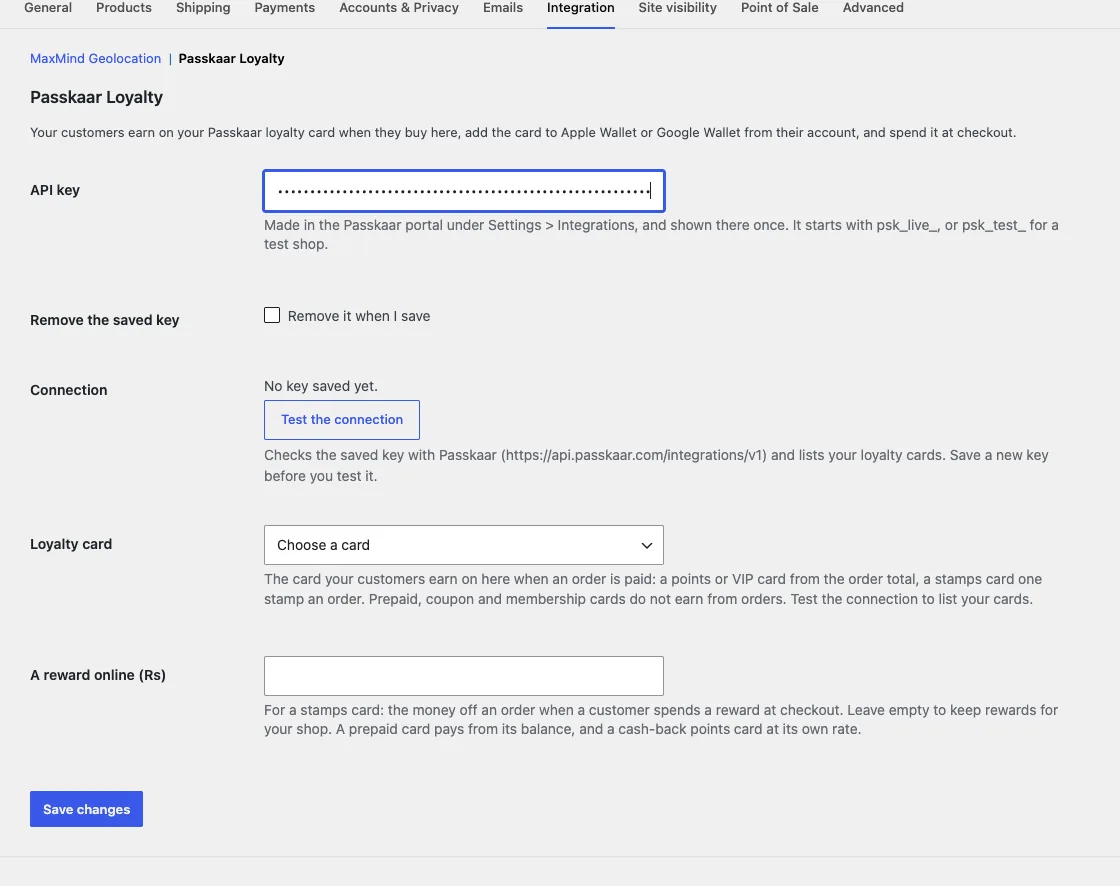
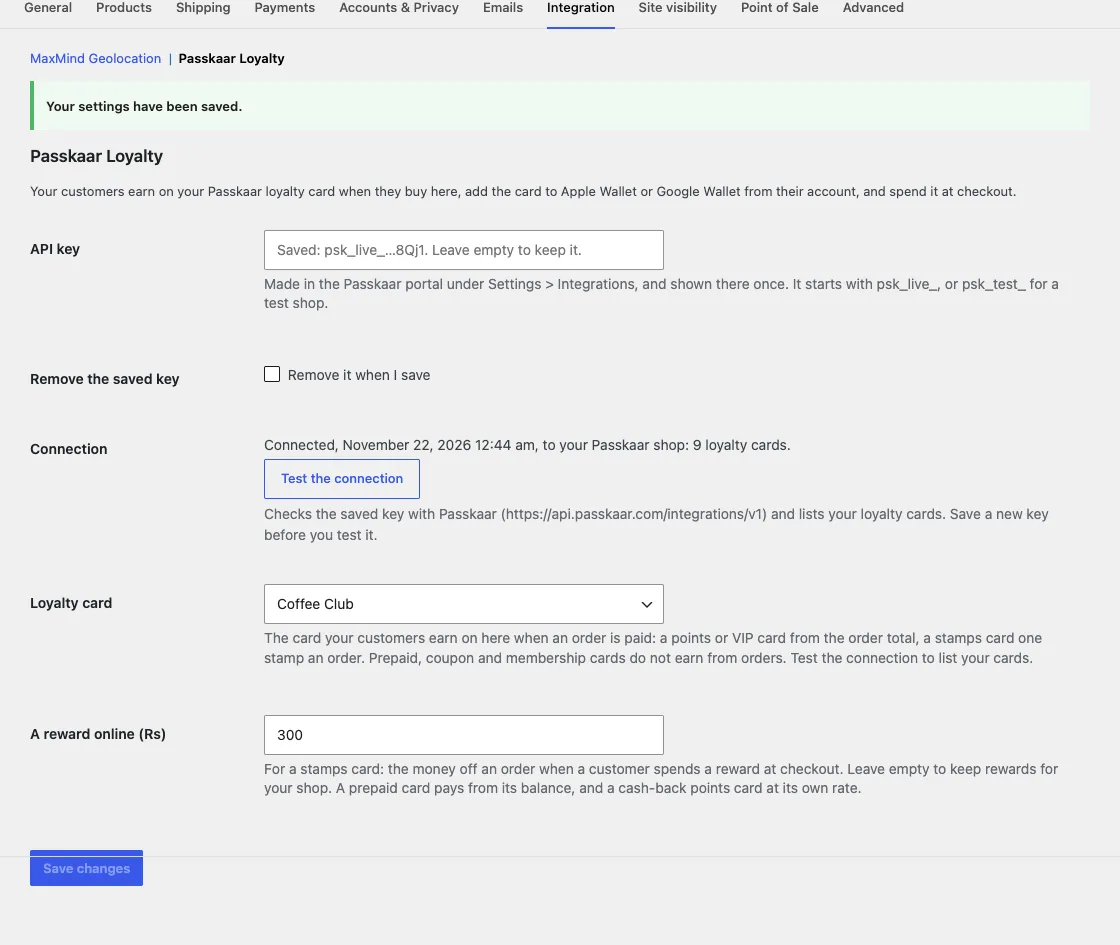
In WordPress, open WooCommerce → Settings, then the Integration tab along the top. WooCommerce opens that tab on a section of its own called MaxMind Geolocation, which you can leave alone: choose Passkaar Loyalty in the row of links just under the tabs.
-
Paste the key you copied from the portal into the box named API key, and choose Save changes.
-
Choose Test the connection. It should say Connected and how many loyalty cards you have.
-
Under Loyalty card, choose the card your store should earn on. Only the cards an order can earn on are listed: stamps, points and VIP cards. Prepaid, coupon and membership cards are sold or used at your counter, so they are not offered.
-
If it is a stamps card and you want customers to spend a reward online, put what a reward is worth in rupees under A reward online (Rs). Leave it empty to keep rewards for your counter. A prepaid card pays from its balance and a cash-back points card at its own rate, so they need nothing here.
-
Choose Save changes.
If the test says the key is for a test shop, you pasted a key Passkaar gave you for trying
things out (it starts psk_test_). It holds test cards, never your customers’ real ones: make a key in your own portal as
above and paste that instead.
If the test says the key was refused, check you pasted all of it, and that the connection is not paused in the portal.
Your ways to pay
Section titled “Your ways to pay”Customers earn on every paid order, however they pay. To spend their card at checkout, your store needs a way to pay online at checkout, such as card payments. While the card pays part of an order, cash on delivery and bank transfer are not offered for the rest, because those orders are paid days later.
If cash on delivery and bank transfer are your store’s only ways to pay, the card is not offered at checkout at all, so no customer is left without a way to pay, and the plugin’s settings page says so. Your customers still earn on every order and spend their card at your counter. Add an online way to pay under WooCommerce → Settings → Payments when you want them to spend online too.
What happens from now on
Section titled “What happens from now on”- An order earns when it is paid. A points or VIP card earns from the order total, a stamps card one stamp an order. Each result is written on the order as a note, so you can see what the card got.
- A bank transfer order waits. WooCommerce puts it On hold until the money arrives. It earns when you change its status to Processing or Completed.
- A cash-on-delivery order earns when you mark it completed, if you switched that on.
- A refund takes back its share of what the order earned, and a full refund takes back all of it. If the customer has already spent it, the card is never taken below zero.
- The customer is found by their store account once it is linked to their card, otherwise by the order’s phone number, then its email. An order from someone with no card earns nothing.
- Your checkout never waits for Passkaar. The work happens in the background a moment later, and if Passkaar cannot be reached it is tried again for about three days. WordPress runs this background work when someone visits your site, so on a quiet site the note can take a few minutes to appear on the order.
- Your portal shows each order in History under the name you gave the connection, and its Integrations page counts what the store did this month.
Next: what your customers see.