
Pausing or disconnecting
Your store’s connection lives in the Passkaar portal, under Settings → Integrations. Everything on this page is done there, by the shop’s owner or an admin.
Whatever you do, your customers keep their cards
Section titled “Whatever you do, your customers keep their cards”Pausing or removing a connection never touches a card already on a customer’s phone. Their stamps, points and balances stay exactly as they are, and they keep using the card at your counter.
Pause it for a while
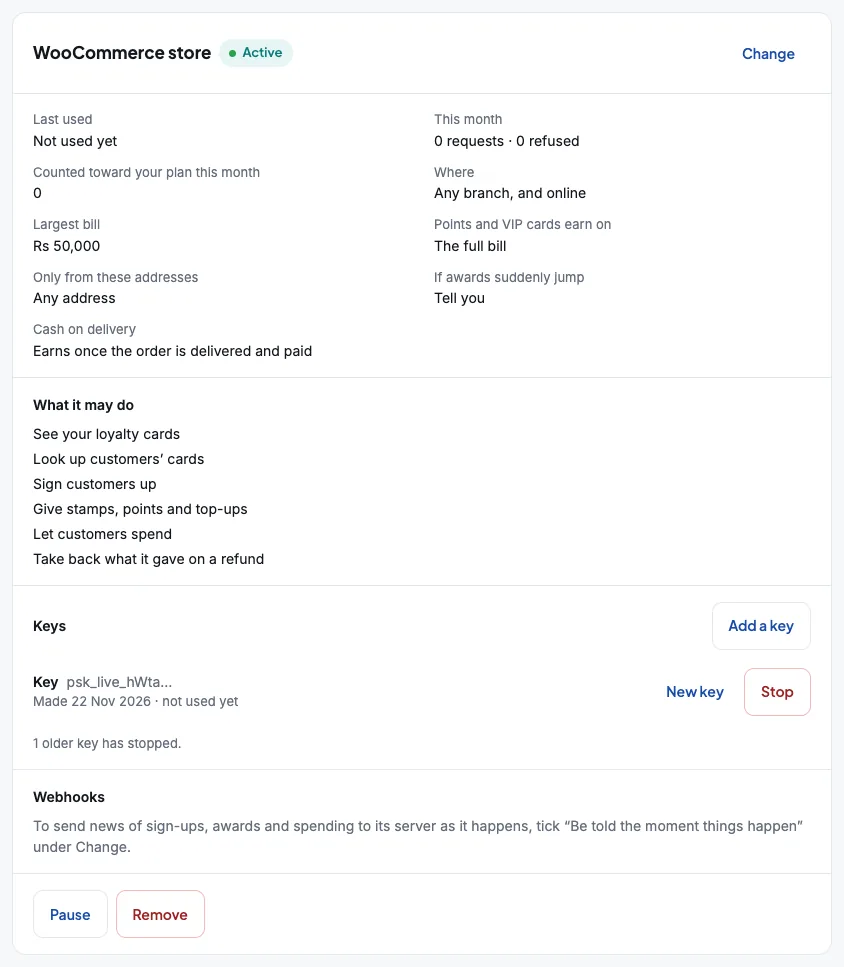
Section titled “Pause it for a while”Choose Pause, then Pause it to confirm. Your store can no longer give, spend or sign anyone up until you choose Resume. Its key stays as it is, so nothing needs pasting again. A WooCommerce store keeps the orders paid meanwhile and tries them again for about three days, so they still earn if you resume it by then.
You might pause it while you change your store, or if its awards look wrong. If awards from your store suddenly jump, Passkaar tells you, and if you switched on Pause it if its awards suddenly jump, pauses it for you.
Change the key
Section titled “Change the key”If the key may have been seen by someone else, or whoever set up your store has left:
- Choose New key beside the key, then Make a new key. The portal shows the new key once; copy it.
- Paste it into your store (for WooCommerce, WooCommerce → Settings, the Integration tab, then Passkaar Loyalty, into API key, and Save changes).
- Choose Stop beside the old key. Anything still using it stops working at once.
The portal keeps the old key working for up to seven days after you make a new one, so your store keeps earning while you paste it in, unless you stop it first.
Add a key, above the list of keys, is different: it makes a second key beside the first, which keeps working. You do not need it for a store; it is for a connection used from two places at once.
Remove it for good
Section titled “Remove it for good”Choose Remove, then Remove it.
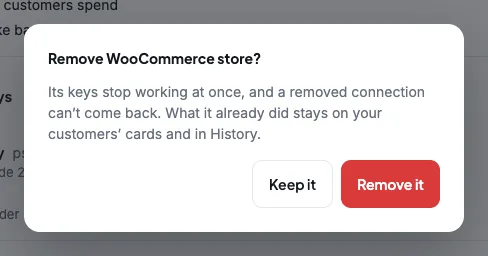
Its key stops working at once, and a removed connection cannot come back; to connect the store again, add a new connection. Everything it already did stays on your customers’ cards and in your History.
Take it off your WooCommerce store
Section titled “Take it off your WooCommerce store”After removing the connection in the portal, take the key off your store too:
- In WooCommerce → Settings → Integration → Passkaar Loyalty, tick Remove it when I save under Remove the saved key, and choose Save changes, or
- In Plugins, deactivate and delete Passkaar Loyalty for WooCommerce. Deleting it removes the key and its settings from your site.
Removing the plugin alone does not stop the key in Passkaar. Always remove the connection in the portal as well.